Edit photos by typing, free to tryTry It Free

Your photo

For the best result
  • An AI image, 3D render, game screenshot or drawing
  • The scene and subject stay the same; it is redrawn as a real photo
  • JPG, PNG or WebP, up to 10 MB

Start From

0/500

Free to try, no sign-up

Image Realistic

Make an image realistic: turn an AI image, 3D render or drawing into a photo. First image free, no sign-up.
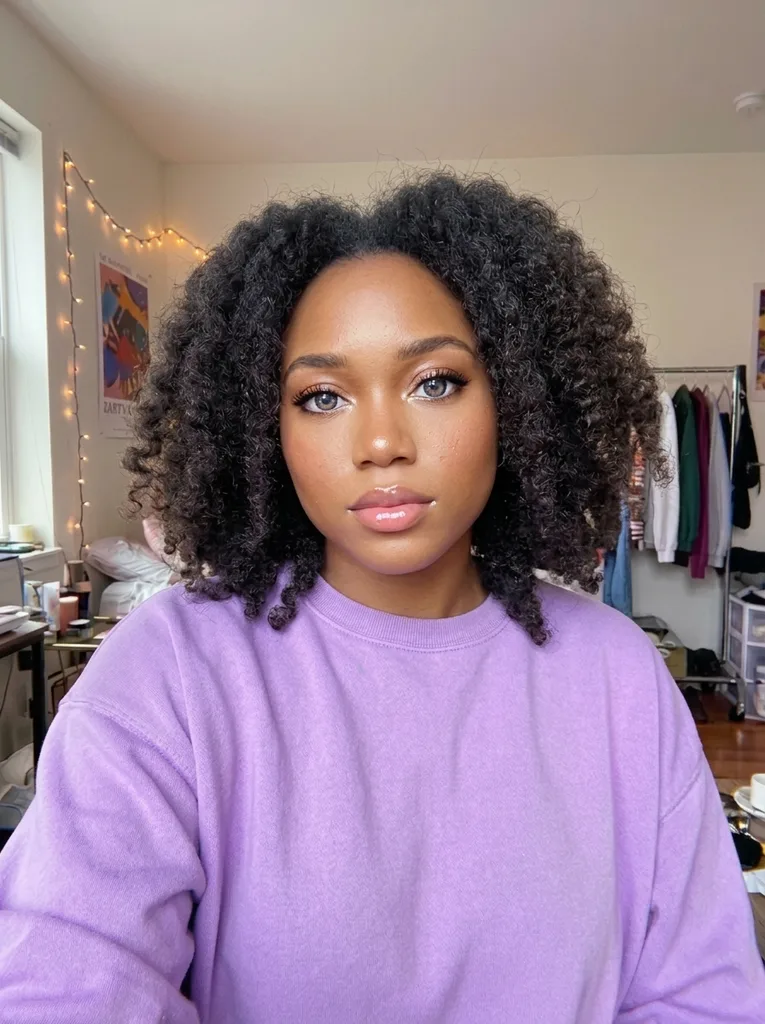
Original: AI-generated portrait of a woman in her mid 20s: AI ImageBefore
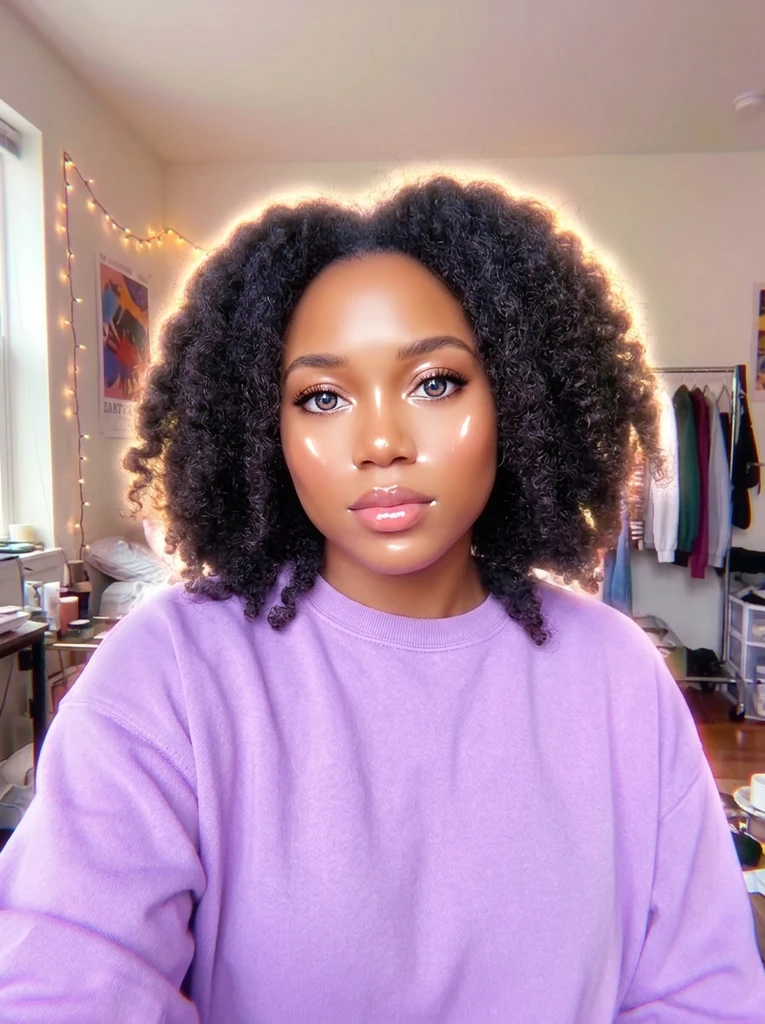
Image Realistic result: AI-generated portrait of a woman in her mid 20s: AI ImageAfter

Example result. Upload your photo to make yours.

Image Realistic result

Make an AI Image Realistic From Any Source

Some pictures look made by a machine: waxy skin, glossy light, shapes that are too clean. This tool redraws the picture as if a real camera had shot the same scene, with natural light, real materials such as skin, fabric and wood, and normal depth of field.

You tell it what you start from: an AI image, a 3D render or game screenshot, or a drawing, painting or cartoon. Each choice tells the tool how much has to be rebuilt, so a flat cartoon and a polished render are not treated alike.

You don't write a prompt. Upload, pick the source, press the button. The subject, pose and composition are what the tool aims to keep. It is a redraw, so compare the result with your original before you use it.

Made for

  • AI artists
  • Game and 3D artists
  • Illustrators
  • Marketers
  • Authors and designers

Where to Make an Image Realistic

  • AI portraits and avatars

    AI faces often have smooth, even skin. A photo-style version suits profile pictures and character art that should read as a real person.

  • Game screenshots and 3D renders

    Turn a CGI frame into a believable photo of the same scene, for a concept pitch, a mood board or a trailer still.

  • Drawings and paintings

    See what a sketch, a painting or a cartoon character would look like as a real photograph of the same subject.

  • Product and ad concepts

    A render of a product or a room can become a photo-style mockup to show a client before the real shoot is booked.

  • Book covers and storyboards

    Give scenes from a story, a game pitch or a film outline a photographic look without organizing a shoot.

  • Social posts

    Make an AI picture feel less synthetic before you post it, so it sits better beside real photos in a feed.

Tips Before You Make an Image Realistic

  • Start with a clear subject and a simple scene; a crowded scene gives the tool more to redraw, and more details that can shift.
  • Pick the source that matches your file: AI Image, 3D Render / CGI, or Drawing / Painting.
  • Use JPG, PNG or WebP up to 10 MB, and the cleanest, sharpest version of the picture you have.
  • Use the optional note for one specific wish, such as a phone-camera look; it is added to your request.
  • Your free image is one run, so choose your best version of the picture first.
  • After the result appears, zoom in and compare it with the original: check faces, hands, small objects and any lettering.
  • Download the result with the Download button; it is a 1K image.

Frequently asked questions

Upload the image, choose AI Image as the source and press Make It Realistic. The tool redraws it as a photo with natural light, real textures and camera-like depth. Your first image is free, no sign-up.

Your first image is free, no sign-up and no credit card. After that there is no paid plan yet: a dialog lets you leave an email for when more images are available.

Yes. Pick 3D Render / CGI for CGI and game screenshots, or Drawing / Painting for sketches, paintings and cartoons. The scene and subject stay the same and are redrawn as a photograph.

The tool only sees the picture you upload, so it does not matter which generator made it. Upload a JPG, PNG or WebP up to 10 MB and choose AI Image as the source. The same goes for a picture saved from a chat or a social feed.

It aims to keep the same person, pose, clothing and composition. It is still a redraw, so details can shift. Compare the result with your original before you use it.

It is built for pictures that look generated or drawn. A real photo can be uploaded, but for a different fix, such as taking away an AI look or sharpening, a sister tool on this site fits better.

It redraws the whole picture, so these details may improve or change, and nothing is checked for you. Look at them closely in the result, and treat it as AI output.

One image at about 1024 px on the long side. The shape follows your upload. This tool does not enlarge pictures, so use an upscaler if you need more pixels. The Download button saves the result.

Your photo is only used to create your images and is never used to train AI models. The photo is sent to the AI model provider, which keeps the result for a limited time so you can download it.

A guide teaches you to write better prompts when you generate an image. This tool starts after that: you already have the picture and want a photo-style version of it, with no prompt writing.

Your free image is a single run, so the next step after the result is Download. That is why the checklist above asks you to pick your best version first.