
Remove Shadow from Photo
Remove shadow from photo online: lift harsh shadows from faces, documents and objects. Your first image is free, no sign-up.
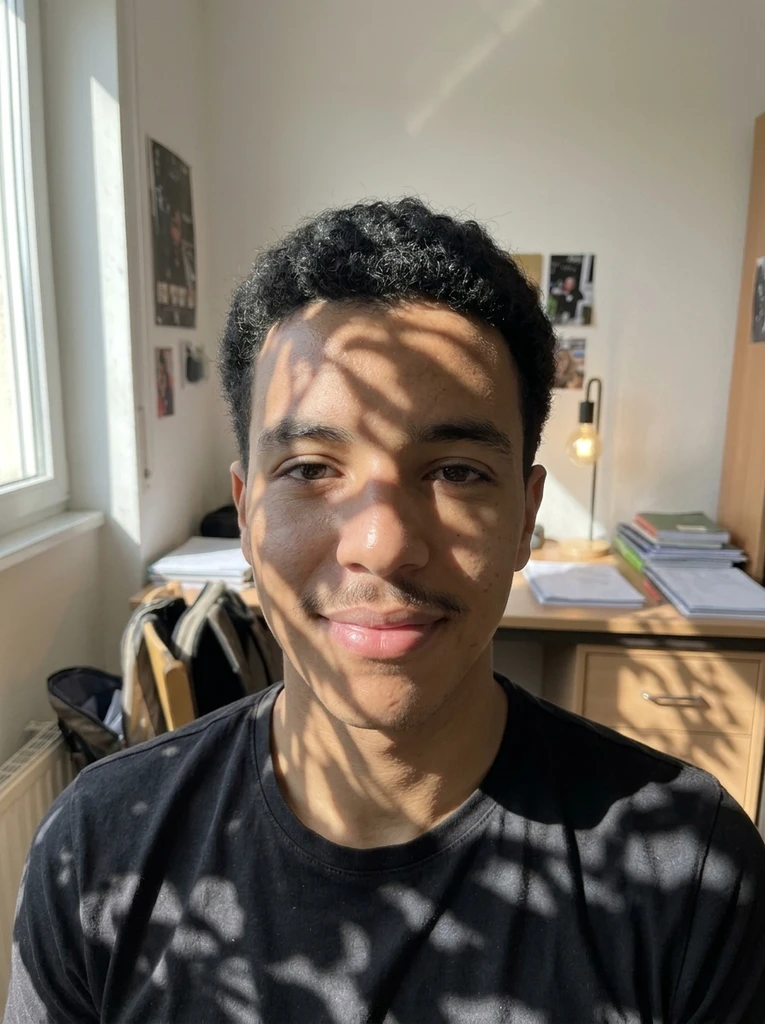 Before
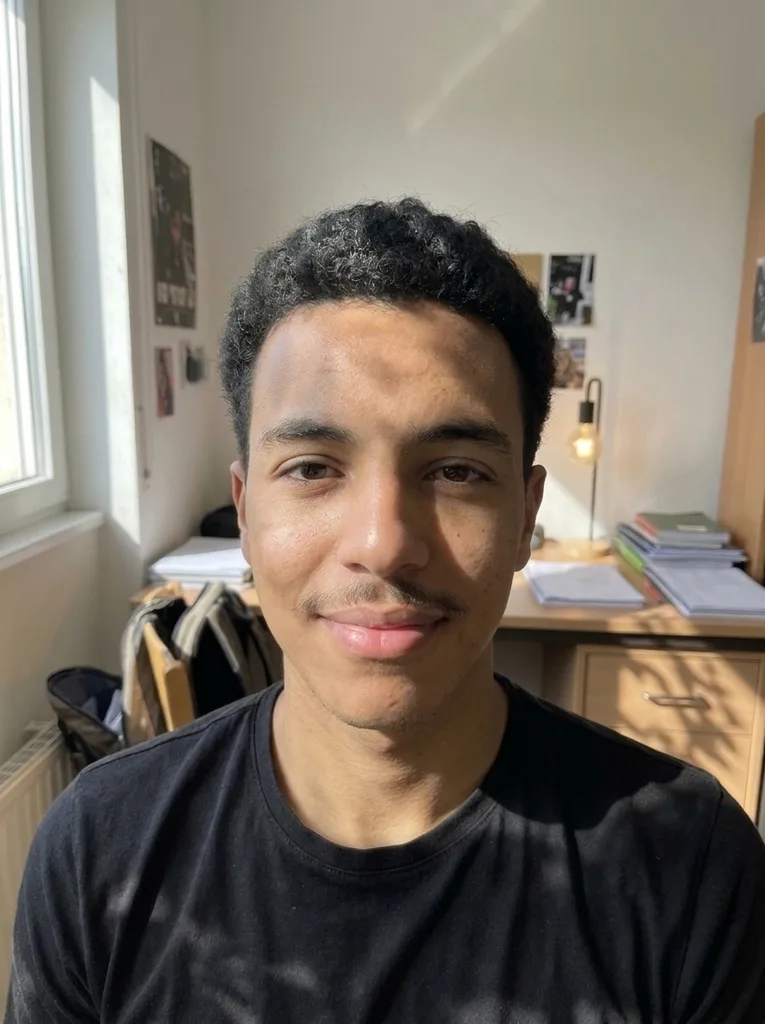 After
Example result. Upload your photo to make yours.
How to Remove Shadow from Photo in Three Steps
No brush and no selection: pick the kind of shadow and the tool relights it for you.
- 1
Upload the shadowed photo
Drop in a JPG, PNG or WebP up to 10 MB, one photo per run. Portraits, documents, products and outdoor shots all work as input. Pick the photo where the shadow is the main problem.
- 2
Pick the shadow type
Choose Auto, Shadows on Face, Hard Sunlight or Document & Object. If there are several shadows, name the one to remove in the note, for example the left side of the face. The note takes up to 500 characters.
- 3
Check it, then download
The result appears beside your original. Compare the two, then press Download. Your first image is free, so check the photo before you run it.
Remove Shadow from Photo: AI vs Brightening vs Manual
Three ways to fix a shadow, and what each asks of you.
| This tool | Brightness slider | Manual masking | |
|---|---|---|---|
| Selecting the shadow | Not needed, pick a preset | Not needed | Paint or select it yourself |
| What changes | Shadowed areas relit to match nearby light | The whole photo gets lighter | Only the area you mask |
| Skin and texture | Aims to recover detail under the shadow | Lit areas can blow out | Depends on your skill |
| Soft shading on faces | Aims to keep it | Flattened with the rest | You decide |
| Skill needed | None | None | Layers, masks, curves |
| Result | A redrawn image to check | Same pixels, lighter | Same pixels, edited |
| Time to first result | Upload, pick, press | Move one slider | Open an editor, build a mask |
Where You Need to Remove Shadow from a Photo
The four presets cover the shadows people ask about most.
Selfies and portraits
A hat brim, hair or a hand can leave a dark band across a face. Shadows on Face evens out the light and aims to keep the soft shading that gives the face its shape.
Photos for ID and applications
A dark patch on one cheek makes a headshot look rough. Even the light first with Shadows on Face, then check the photo against the rules of whoever asks for it.
Documents and pages
Your phone or hand often shadows the page you photograph, and the text gets harder to read. Document & Object clears the shadow so the page looks evenly lit.
Products and objects
A dark cast across an item makes it look dirty or flat. Remove it before you list, share or print the photo, then compare the result with your original.
Sunny outdoor snapshots
Midday sun leaves hard, dark edges on people and walls. Hard Sunlight softens them to match the surrounding light.
Family and travel photos
One person standing in another's shadow spoils a group shot. Name that shadow in the note, for example the shadow across my brother's face, and run Auto.