
Make Image Look Less AI
Make image look less AI: pick plastic skin, glossy light or odd details. Your first image is free, no sign-up.
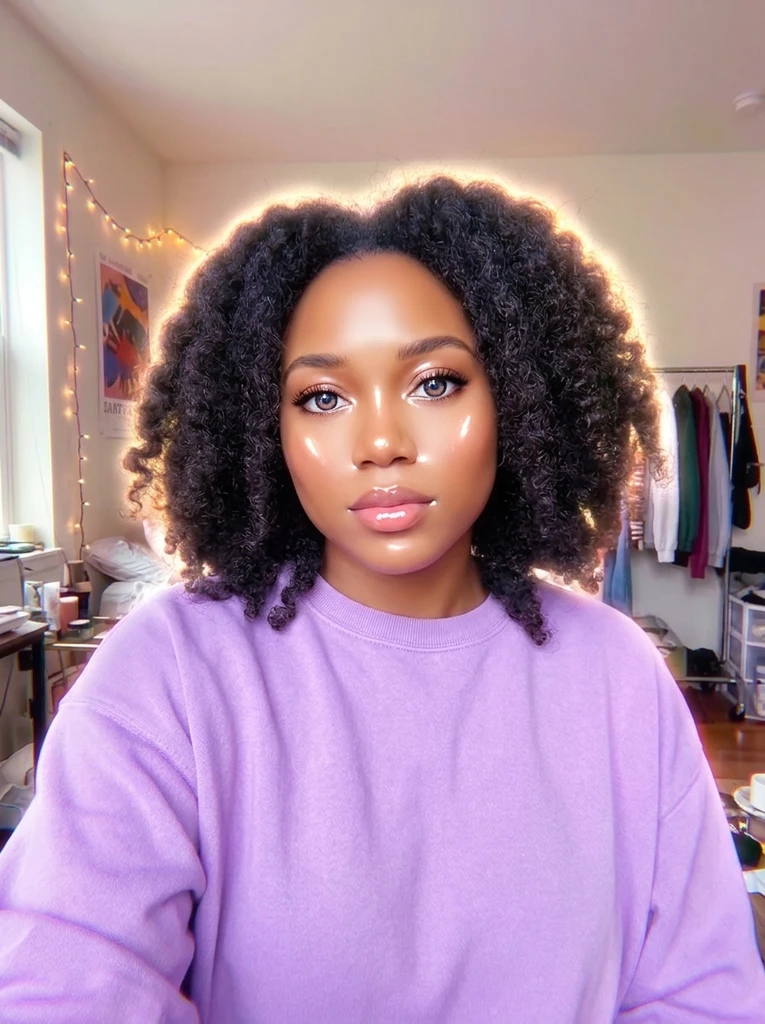 Before
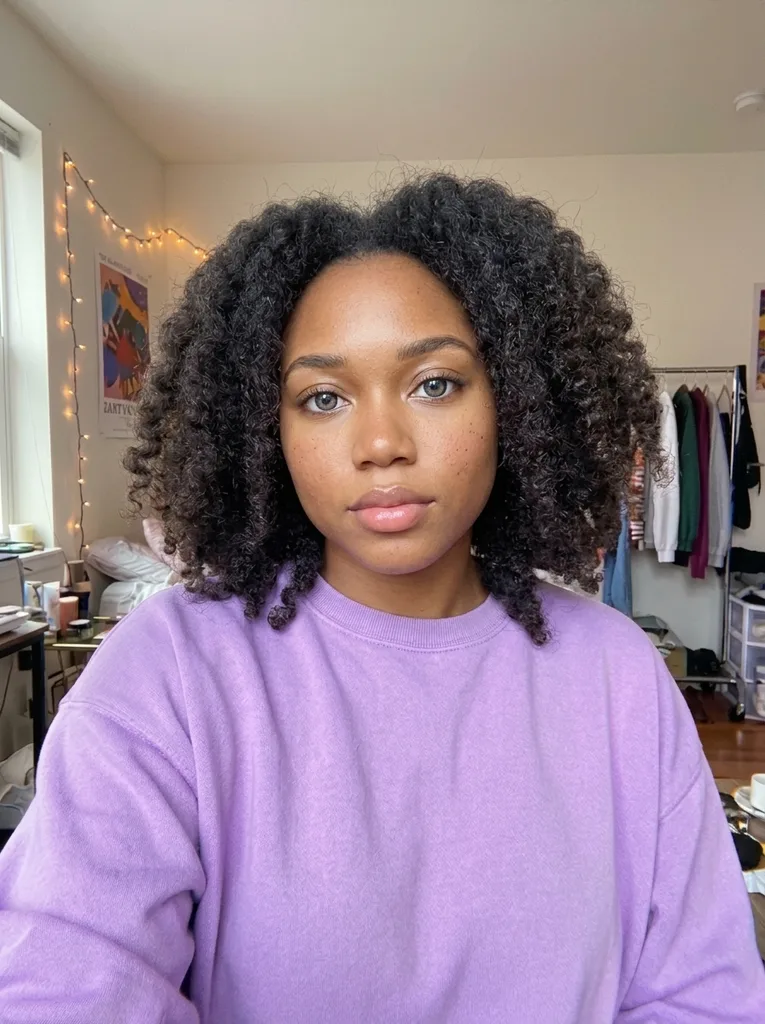 After
Example result. Upload your photo to make yours.
Why You Need to Make Image Look Less AI
Most AI images share the same tells. Skin is smooth and waxy, with no pores. Light is glossy, hazy or glowing, and colors run past what a camera records. Details give way: fingers bend, background objects melt, text turns to gibberish, and faces come out too symmetrical.
These are the things people notice first, long before they look at resolution. Fixing them means changing how the picture looks, not just sharpening it. Over-edited real photos can show the same plastic finish, so they are fair input too.
What Each Fix Changes
Everything works through all the tells at once. Plastic Skin brings back pores and small imperfections. Glossy Light & Color tones down highlights, glow, haze and over-saturation. Odd Details redraws warped hands, melted objects and garbled text.
The tool redraws the image, so it aims to keep the same person, pose, clothing and framing, but fine details can still change. Compare the result with your original before you use it.
Which Fix to Pick
Start with Everything if you are not sure what looks off. Pick Plastic Skin for portraits where the face feels like a mannequin, Glossy Light & Color for scenes that glow or look oversaturated, and Odd Details for hands, objects and lettering that do not make sense.
You only get one free image, so choose before you run. The note box, up to 500 characters, is added to your request when the problem is specific, such as shiny cheeks or a hazy background.
How to Make Image Look Less AI in 3 Steps
Three steps, with no mask or brush to learn.
- 1
Upload the image
Drop in a JPG, PNG or WebP up to 10 MB. It can come from any generator, or be a real photo that was edited too heavily.
- 2
Pick what looks fake
Choose Plastic Skin, Glossy Light & Color or Odd Details, or leave Everything selected. You can also describe the problem in the box, for example that the skin looks plastic.
- 3
Run it and download
The result appears next to your original so you can compare. Download it when it looks right. Your first image is free, one free image per visitor, so the download is the last step.
What to Know Before You Run It
Your first image is free
One free image per visitor, no sign-up and no credit card. After that there is no paid plan yet; a dialog lets you leave an email for when more images are available.
What happens to your photo
Your photo is only used to create your images and is never used to train AI models. The photo goes to the AI model provider, which keeps the result for a limited time so you can download it. Nothing is uploaded until you press the button.
It does not hide AI origin
The result is redrawn by an AI model, so it is still AI output. This tool changes how an image looks, not where it came from, and it does not promise to pass an AI detector.
Check the result
A redraw can change fine details. Look at hands, text and faces against the original before you share the image. The output is a single image, so compare it with your upload.