
Remove People from Photo
Remove people from photo in one step: pick who goes, and the background is filled in. Your first image is free, no sign-up.
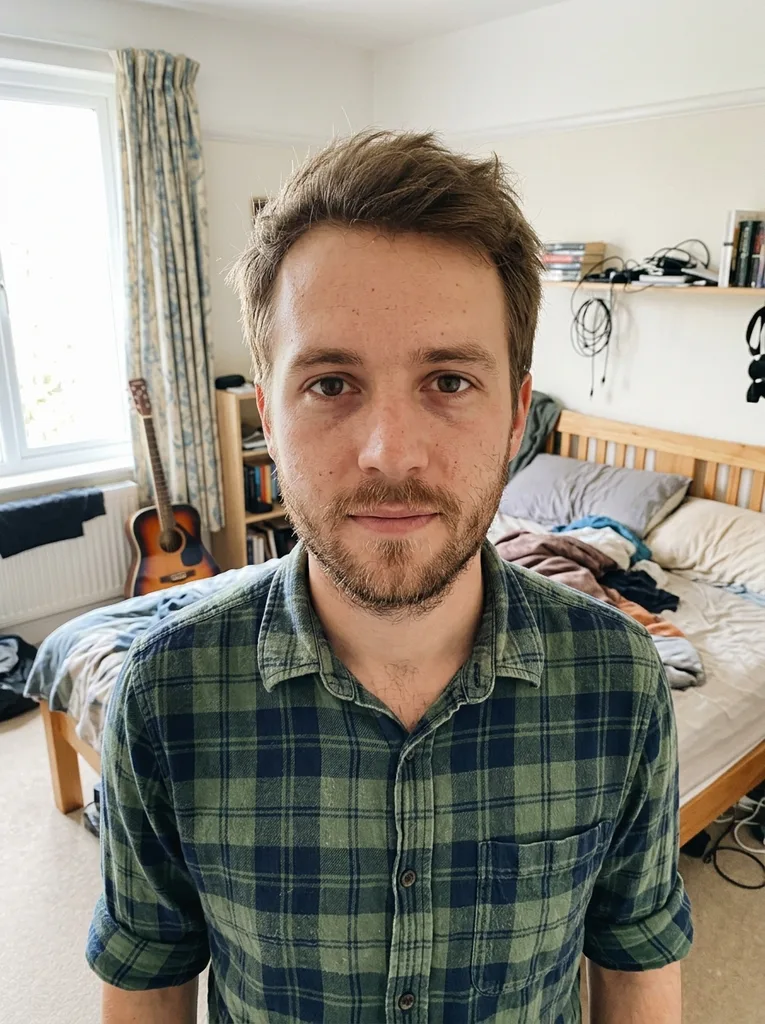 Before
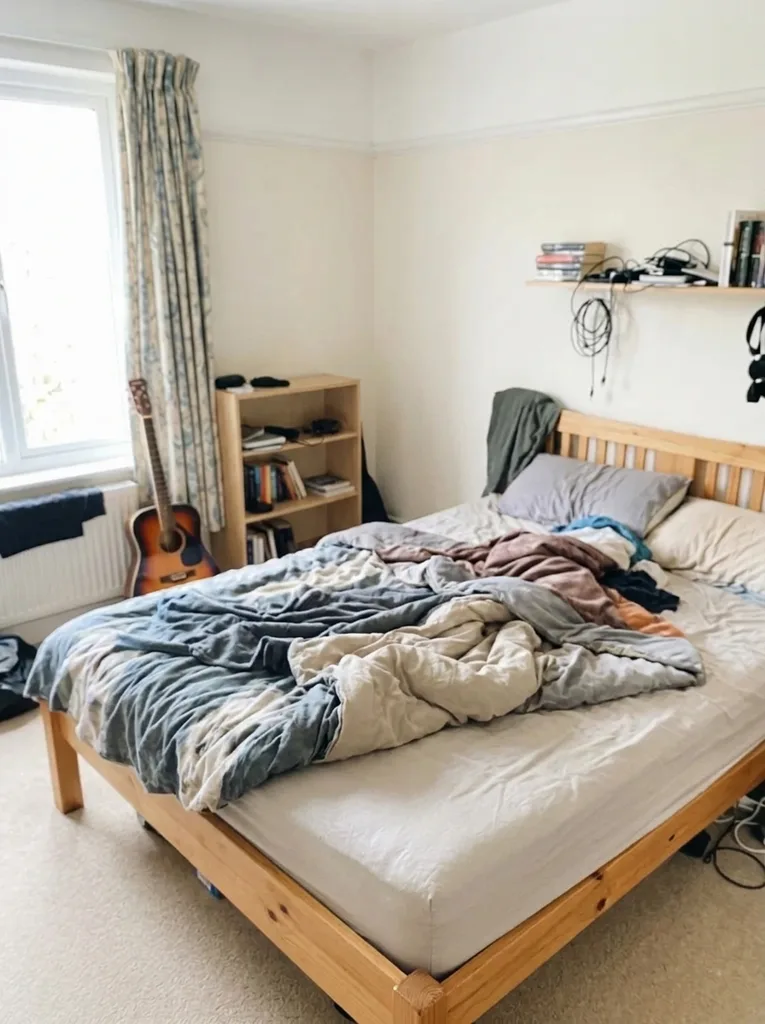 After
Example result. Upload your photo to make yours.
How to remove people from photo in three steps
No brush and no mask: you choose who goes.
- 1
Upload your photo
Drop in a JPG, PNG or WebP up to 10 MB, or click to browse. One photo per run, and it is prepared in your browser before it is sent.
- 2
Pick who goes
Choose Background People, Everyone or Crowds. If it is not obvious who you mean, add a note in the box, up to 500 characters, such as "the man in the red jacket on the left".
- 3
Compare and download
The result appears next to your original. Look at the filled-in area, the edges and the people who stayed, then press Download. Your first image is the free one, so check it before you save.
When to remove a person from a photo
Landmark and travel shots
Pick Crowds to clear tourists and passers-by from a monument, a viewpoint or a market street so the place is what you see, not the queue in front of it. Wide scenes with a simple sky or pavement behind the crowd work best.
Photobombers
Pick Background People to keep the person in front and take out the stranger who walked into the frame. It is the default preset, made for one subject with a few people behind.
Family and group photos
Name one person in the note, such as the cousin who blinked, and the rest of the group stays. It is a quick fix when one face spoils an otherwise good shot.
Listings and venue photos
Empty a room, a shopfront or a hall for a listing or a booking page by picking Everyone. Check the floor and the walls where each person stood.
Scenery with nobody in it
Pick Everyone for a beach, trail or street shot where you only want the place, with no footprints of people left in the picture.
Profile and social posts
Take out the people at the next table or behind you before you post a picture of yourself. Name them in the note if you want to keep your friends.
Tips for a clean result
- Name the person in the note when several people could be meant, for example "the woman with the stroller on the right".
- A plain background such as sky, sand, water, a wall or pavement is rebuilt most cleanly, so it is the easiest case when you remove people from photo scenes.
- Pick Background People when someone must stay in front; pick Everyone only when nobody should remain.
- Use a photo where the person you remove does not touch or overlap the person you keep: shared handrails or linked arms are hard to separate.
- Start from the sharpest version you have: a blurry original gives the fill less to match.
- Compare the result with your original: look at the ground, edges and shadows where the person stood, and at the people who stayed.