
Unpixelate Image
Unpixelate image files online: upload a blocky or pixelated picture and get a cleaner one back. Your first image is free, no sign-up.
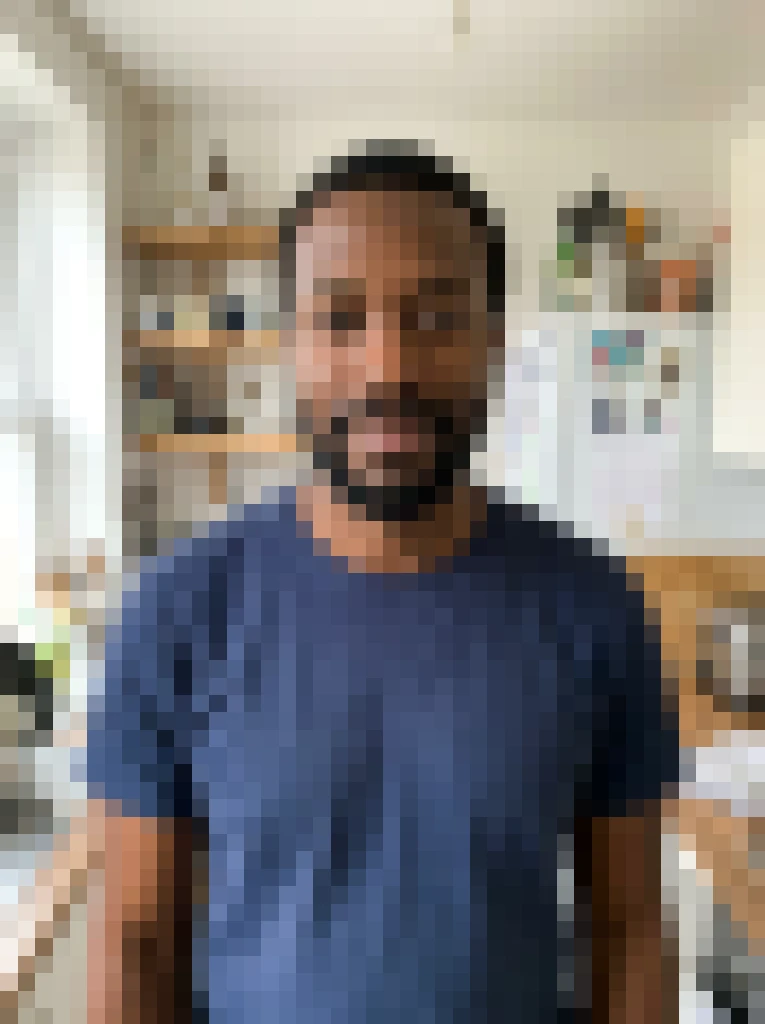 Before
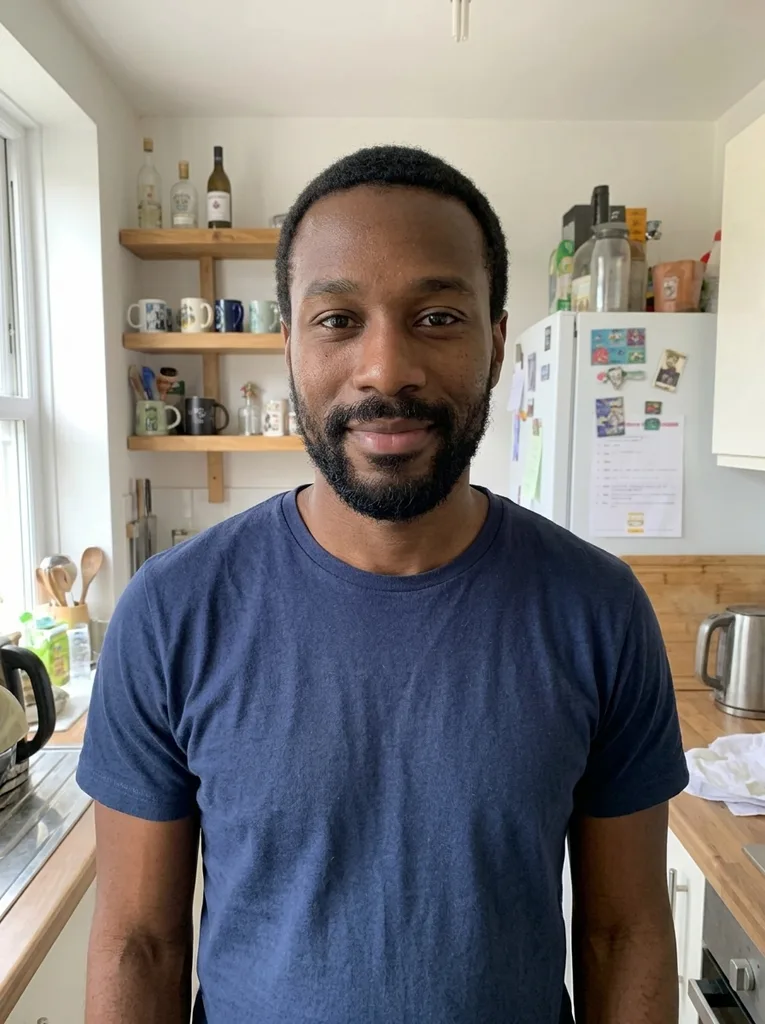 After
Example result. Upload your photo to make yours.
Fix pixelated photos and blocky JPEGs
One upload, one button, no settings to tune.
Pixelation shows up as visible squares, stair-stepped edges and flat color patches. It happens when a small picture is enlarged, when a JPEG is compressed too hard, or when a screenshot or video frame is saved at low resolution.
This tool sends your photo to an AI image model that redraws it without the blocks: smoother edges, cleaner gradients, finer texture. It aims to keep the faces, objects, colors and framing of your original.
Your photo is only used to create your images and is never used to train AI models.
The result is an AI redraw, so compare it with your original before you use it.
Use it when you want to unpixelate image files you already own: an old scan, a small download, a screenshot or a frame pulled from a video. It takes one photo per run, and the result appears next to your original so you can check it before you download.
Made for
- Old scans
- Low-res screenshots
- Over-compressed JPEGs
- Video frames
- Small web images
- Downloaded thumbnails
Pixelated or blurry? Check before you upload
Zoom in on your picture. Pixelation has hard square blocks or a mosaic grid, and edges that climb like stairs. Blur looks smeared and soft, with no squares at all.
Blocks mean you want to unpixelate the image here. A soft, smeared picture is a job for the Unblur Image tool instead, which is built for focus and motion blur. Mixed cases exist: a photo that was shrunk and blown up again can show both blocks and softness. Pick the one you notice first.
What the redraw can and cannot bring back
The model cannot read the original pixels back out of a block. It draws detail that fits the shapes and colors it sees, so a texture or a pattern in the result is a plausible guess, not a record.
That matters for a mosaic added on purpose over a face or a line of text. The block hides that information, and the tool will not reveal it: it draws something that looks sharp, and it may be wrong. Use it to clean up your own low-quality images, not to uncover what someone hid.
The best inputs are ones where the blocks are small relative to the subject and the shapes are still readable: a face in a small portrait, a product on a plain background, a landscape. The less the picture shows, the more the model has to invent.
AI unpixelate vs a sharpen filter or a resize
What each way does to a blocky picture.
| This tool | Sharpen filter | Plain resize | |
|---|---|---|---|
| What it does | Redraws the picture without blocks | Raises contrast along existing edges | Stretches the same pixels bigger |
| Block edges | Smoothed into clean lines | Often sharper, so more visible | Stay, just larger |
| New detail | Drawn by the model | None | None |
| Your effort | Upload and press one button | Sliders and trial and error | One size field |
| Risk | Fine details can change | Halos and noise | Soft, still blocky |