
Remove color from an image without uploading it
Pick one of three modes and watch the preview change as you move the sliders.
This tool takes color out of a photo. It does not make a color transparent: removed color turns to gray, so the picture keeps its shape and brightness. Many tools with a similar name do the opposite, so check that this is the effect you want.
All colors gives you a gray photo. One color grays out a single hue, such as the red of a jacket or the green of a lawn. All but one color grays out everything except the hue you pick, so one color stands out against a gray scene.
Strength sets how far the color goes, from 0 to 100 percent. A lower value leaves a muted, faded look instead of full gray.
The photo is changed in your browser, so it is not uploaded and there is no sign-up. Press and hold the compare button at any time to see the original.
Made for
- Color splash photos
- Grayscale for print
- Product shots
- Design mockups
- Class projects
- Social posts
How to remove color from image files in three steps
Every slider updates the preview live, so you can adjust before you download.
- 1
Upload a photo and choose a mode
Drop a JPG, PNG or WebP up to 50 MB. Under Remove, choose All colors, One color or All but one color, then press the button. All colors needs no further setup.
- 2
Pick the color and its range
For the two color modes, choose red, orange, yellow, green, cyan, blue, purple or pink. Color range, from 5 to 90 degrees, sets how many nearby shades count as that color. Start near the default and widen it if some shades stay colored.
- 3
Set the strength, compare and download
Strength runs from 0 to 100 percent. Hold the compare button to see the original, then download. The file is rendered again from your full photo, so it is sharper than the preview.
Before you remove color from image files: what to know
What happens to your photo, and where the effect has limits.
Nothing leaves your device
The photo is decoded and changed in your browser. It is never uploaded, and nothing is stored on our side. There is no limit on how many photos you try.
A color is matched by hue, not by object
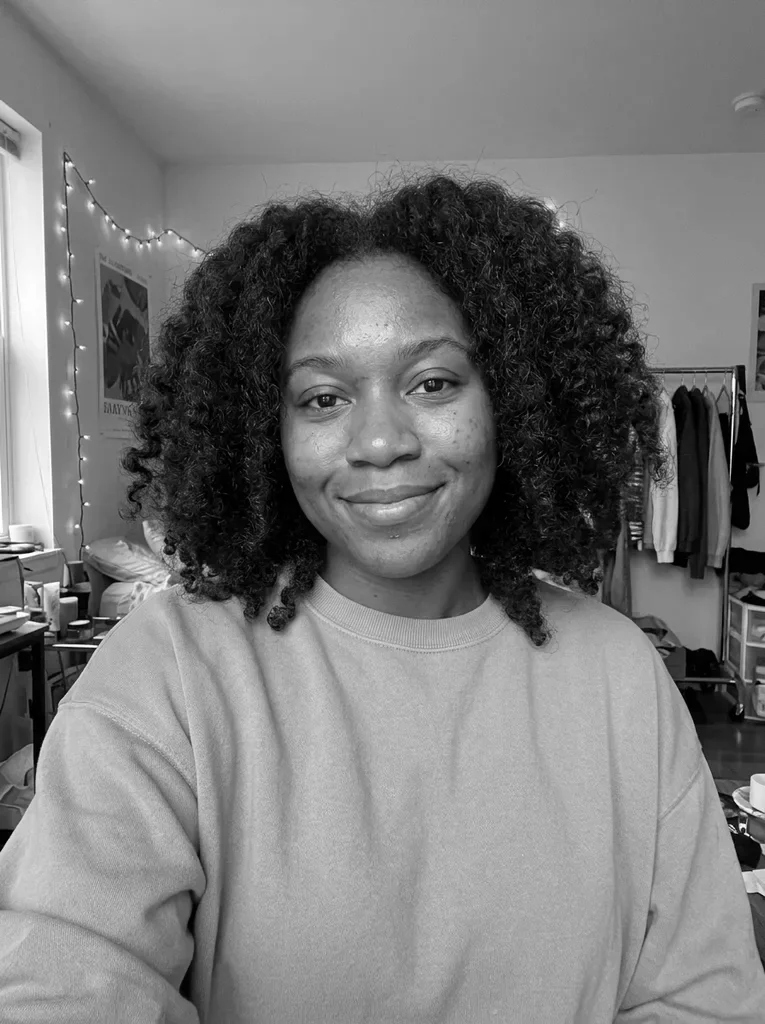
In our test on a selfie, removing red also grayed skin and lips, because their hues sit close to red. Keeping red left only those red-orange areas in color. Narrow the color range or pick a hue the subject does not share.
This is a color effect, not an AI edit
The tool changes color values and does not redraw anything, so shapes and details stay as they are. It cannot recolor, fill or erase an object. Check the result against the original before you use it.
Output format and size
The download is rendered from your full photo, up to 8000 pixels on the long side. A JPG comes back as a JPG, anything else as a PNG. It does not add transparency.