
Remove Text from Image
Remove text from image files by naming what goes: captions, date stamps, memes or signs. One free image, no sign-up.
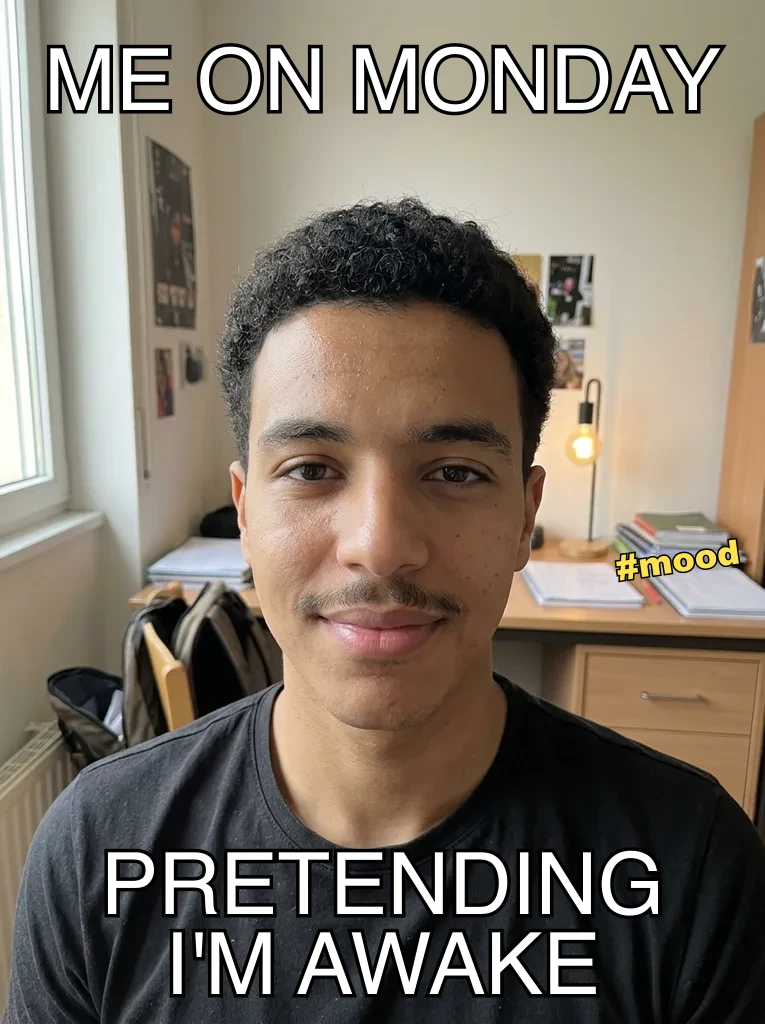 Before
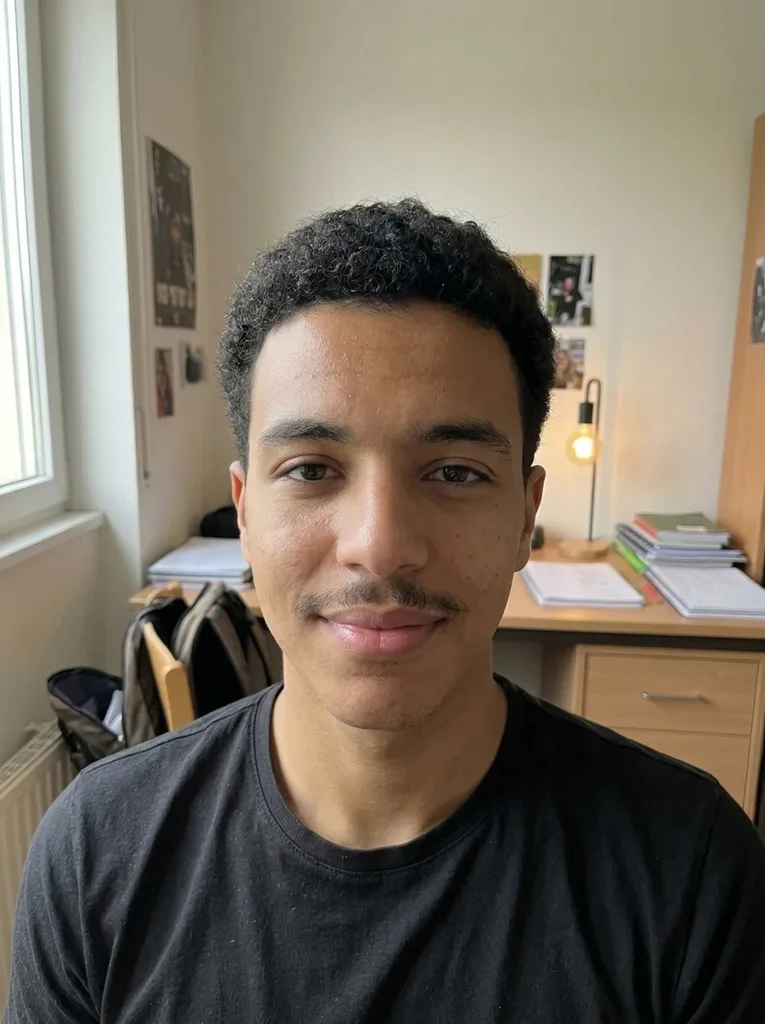 After
Example result. Upload your photo to make yours.
How to Remove Text from Image Files in 3 Steps
No brush and no selecting. You tell the tool which text should go.
- 1
Upload the picture
Drop in a JPG, PNG or WebP up to 10 MB. Photos, screenshots, memes and posters all work.
- 2
Pick the kind of text
Choose All Text, Captions & Subtitles, Meme & Social Text, Date Stamp, Handwriting & Doodles or Signs & Labels. To keep some of the text, say which part goes in the box, for example "remove only the caption at the bottom".
- 3
Remove it and download
The result appears beside your original so you can compare the two. Your first image is free, so check the area where the text was, then press Download.
When to Remove Text from Image Files
Six presets cover the usual overlays.
Date stamps on old prints
Scanned film photos often carry an orange date in a corner. The Date Stamp preset is built for exactly that mark.
Subtitles and captions
Take a screenshot or a video frame and clear the line along the bottom edge. Useful when you want the bare frame as a wallpaper or thumbnail.
Meme and social text
Recover the picture under a meme caption or a sticker with words. Handy for reusing a photo you made yourself.
Handwriting and doodles
Clear pen scribbles, names and arrows drawn on a photo or a scanned page.
Signs, labels and screens
Remove words from storefronts, posters, packaging or a monitor in the background, so the scene stays and the lettering goes.
Your own graphics
Clear outdated prices, slogans or placeholder copy from a banner or mockup, then add the new words in your design tool.
Tips to Remove Text from Image Cleanly
A few habits help the AI rebuild what was behind the words.
- Start from the sharpest, largest copy you have, up to 10 MB.
- Choose the preset that matches the text, since All Text is the broadest setting.
- If only some words should go, name them in the box, such as "the caption at the bottom" or "the date in the corner".
- Big letters over a busy background are harder to hide than small text over a plain wall, so describe the background if it matters.
- Check the area where the text was against your original before you download.
- Keep the original file: the AI redraws the picture, so fine details can shift.
Before You Upload
What is free
Your first image is free, no sign-up and no credit card. After that there is no paid plan yet, and a dialog lets you leave an email for when more images are available.
What happens to your photo
Your photo is only used to create your images and is never used to train AI models. The model provider keeps the result for a limited time so you can download it.
It is an AI redraw
The tool redraws the picture instead of painting over the words, so textures and small details near the text can change. Compare the result with your original.
Use it on images you may edit
Use it on your own images or ones you have permission to edit. A watermark often marks an image you have no license to change.