
Make Image Higher Quality
Make image higher quality by fixing JPEG blocks, noise and soft detail. Your first image is free, no sign-up.
 Before
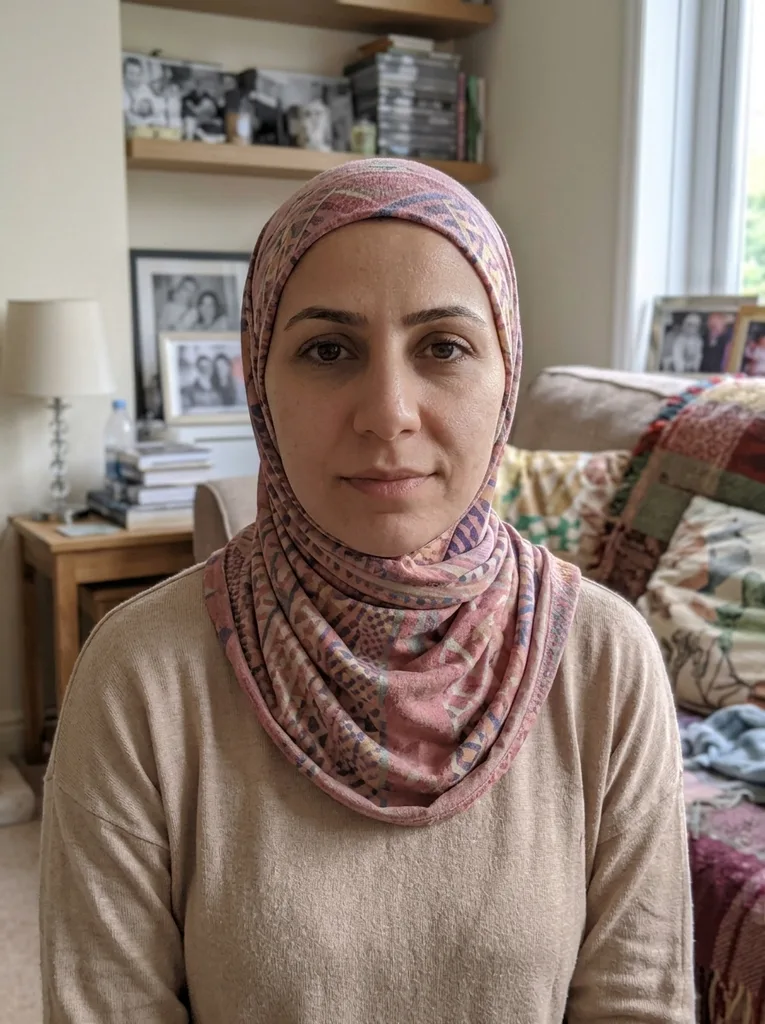 After
Example result. Upload your photo to make yours.
Make image higher quality: this tool vs the usual fixes
Pick by what is wrong with the image, not by the biggest number on the button.
| This tool | Size upscaler | Sharpen slider | |
|---|---|---|---|
| What it works on | Compression, noise, soft detail | Pixel count | Edge contrast |
| How it fixes | AI redraws the image | AI enlarges it | Adds contrast at edges |
| Compression blocks | Targeted by a preset | Often enlarged with the image | Often made more visible |
| Output size | About 1K on the long side | Up to 4K or 8K | Same as the input |
| You choose | Auto or a fault preset | A target size | A strength value |
| Best when | The image looks bad at its own size | You need a bigger file for print | The image is only slightly soft |
How to make an image higher quality in three steps
- 1
Upload the image
Click or drag in a JPG, PNG or WebP up to 10 MB. Use the best copy you have: the original file beats one that was saved as JPG again and again.
- 2
Pick what is wrong
Auto looks for the fault itself. Compressed / JPEG, Small / Screenshot and Old Phone Photo each aim at one fault. You can also add a note of up to 500 characters, such as "a compressed screenshot of a photo".
- 3
Compare and download
The result appears beside your original. Check faces, text and fine detail against it, then press Download. It is one image per run, at about 1K on the long side.
How to prepare a low quality image for the best result
- Use the largest, least edited copy: the original file beats a screenshot or a forwarded chat copy.
- Name one main fault: blocky and banded is Compressed / JPEG, tiny or pixel-edged is Small / Screenshot.
- For an old phone shot with dull color and soft focus, choose Old Phone Photo.
- Not sure? Leave Auto selected and describe the image in the note.
- Crop out borders and app frames first, so the tool works on the picture itself.
- Compare the result with your original before you use it: AI redraws detail, so faces and small text can change.
- If the image is a photo of a photo, crop to the inner photo first, or the frame and glare get treated as part of the picture.
Frequently asked questions
Your first image is free, with no sign-up and no credit card. The free image counts across the whole site, not per page. After it, a dialog offers to leave an email for when more images are available.
An image with blocky JPEG compression, noise, soft or smeared detail, or too few pixels for what it shows. Pick Compressed / JPEG, Small / Screenshot or Old Phone Photo for the fault you see, or Auto to let the AI find it.
Start with Auto or the one preset that matches the fault, and avoid stacking requests in the note. The tool aims for natural detail, not a plastic look or sharpening halos. Zoom in on skin and edges in the result to confirm.
No. The result is one image of about 1K on the long side, so this page fixes how the image looks, not how many pixels the file has. For a 4K or 8K file for print, use the 4K image upscaler, which enlarges the photo in your browser.
Chat apps and social sites re-compress images to save bandwidth, and each save removes detail. That is the damage the Compressed / JPEG preset targets. If you still have the original from the camera, upload that instead.
It aims to. Pick Compressed / JPEG to target blocks, banding, color noise and smeared detail. Heavy damage leaves less to rebuild from, so a lightly compressed file gives a cleaner result. Check the result against your original.
Yes, upload the profile photo and choose the preset that matches its fault. Faces are redrawn along with the rest, so compare the eyes, skin and hairline with the original before you use it.
Yes, use Small / Screenshot. It rebuilds crisp detail as if the image were the original at higher resolution. Tiny text may be redrawn rather than copied, so read it again after.
Choose Old Phone Photo. It aims to remove noise, fix dull colors and improve soft focus. For a photo that is mainly out of focus, the unblur image page is a closer fit.
It aims to keep the same people, objects, colors and framing, and only rebuild quality. It is still a generative edit, so compare faces and fine detail with your original before you use it.
This page is organized by fault: compression, small size or old phone. The photo enhancer page is a general clean-up. Both edit one image per run and both redraw detail.
Not here. This tool only improves quality. For a deliberately low-quality or deep-fried look, use a compression or distortion tool.
Your photo is only used to create your images and is never used to train AI models. The AI model provider keeps the result for a limited time so you can download it.